
Share & manage files
Share a file
Section titled “Share a file”- From an open file: ⋯ → Share.
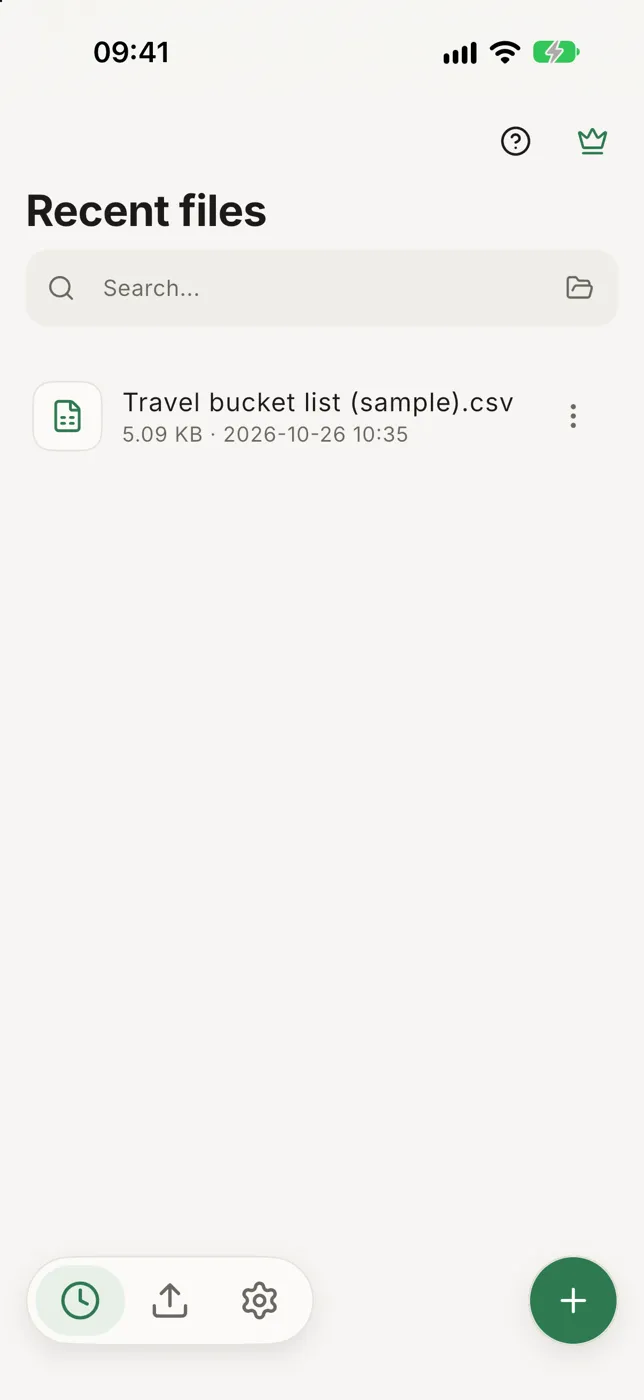
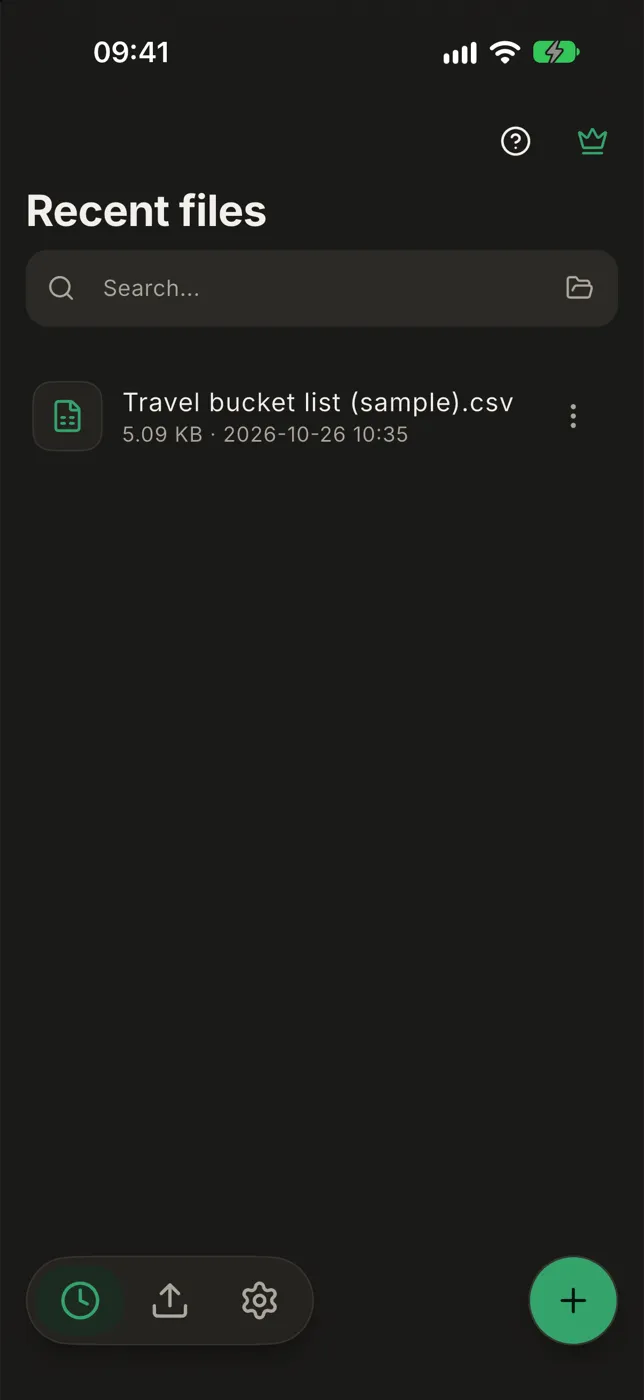
- From the home screen: tap ⋯ on a file → Share.
- Several at once: hold a file on the home screen to start selecting, tap the others, then Share or Email.
What you share is the table with all your edits in it. A big file takes a few seconds to get ready; Cancel on the Preparing to send dialog sends nothing.
A file the free version only partly read is sent as a new file with just the rows it read, and Smart CSV says so before it goes.
Rename
Section titled “Rename”- On the home screen: ⋯ on the file → Rename.
- In an open file: ⋯, then the pencil next to the file name.
A name that’s already taken is refused, and so is one that’s too long for the phone to store (about 250 letters, fewer in scripts like Chinese or Japanese).
Remove
Section titled “Remove”⋯ on a file → Remove deletes Smart CSV’s copy, including edits that weren’t written. The original file is not touched.
Exported files
Section titled “Exported files”The middle tab at the bottom of the home screen, Exported files, lists the charts and PDFs you’ve exported. Tap one to open it or share it again.
Search your files
Section titled “Search your files”Type in the Search field at the top of the home screen to find a file by name.