
Search
- Tap the magnifier in the top bar. A search field takes the bar’s place.
- Type what you’re looking for. The table selects the first matching cell at or after the cell you have selected, and the field shows where it is among all matching cells, for example 1 / 5.
- Use ∧ and ∨ at the end of the bar to go to the previous and next matching cell. They go across a row, left to right, before moving to the next row, and come round to the start after the last match. Search on the keyboard also goes to the next one.
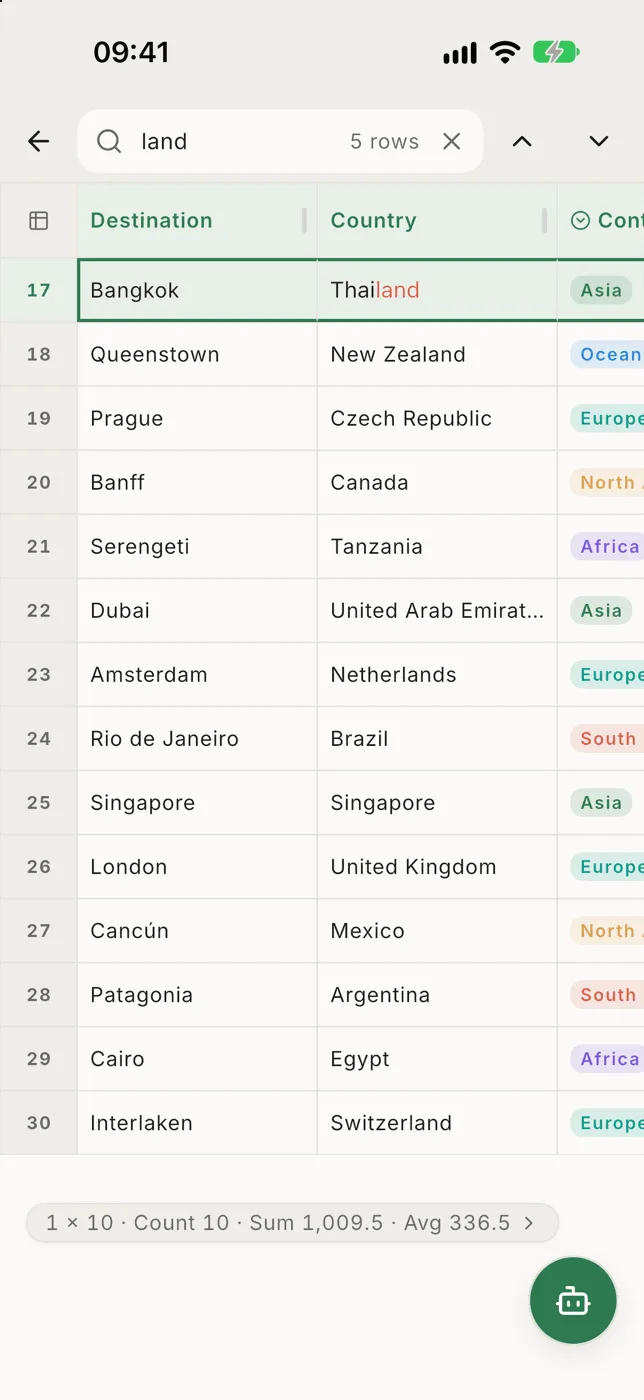
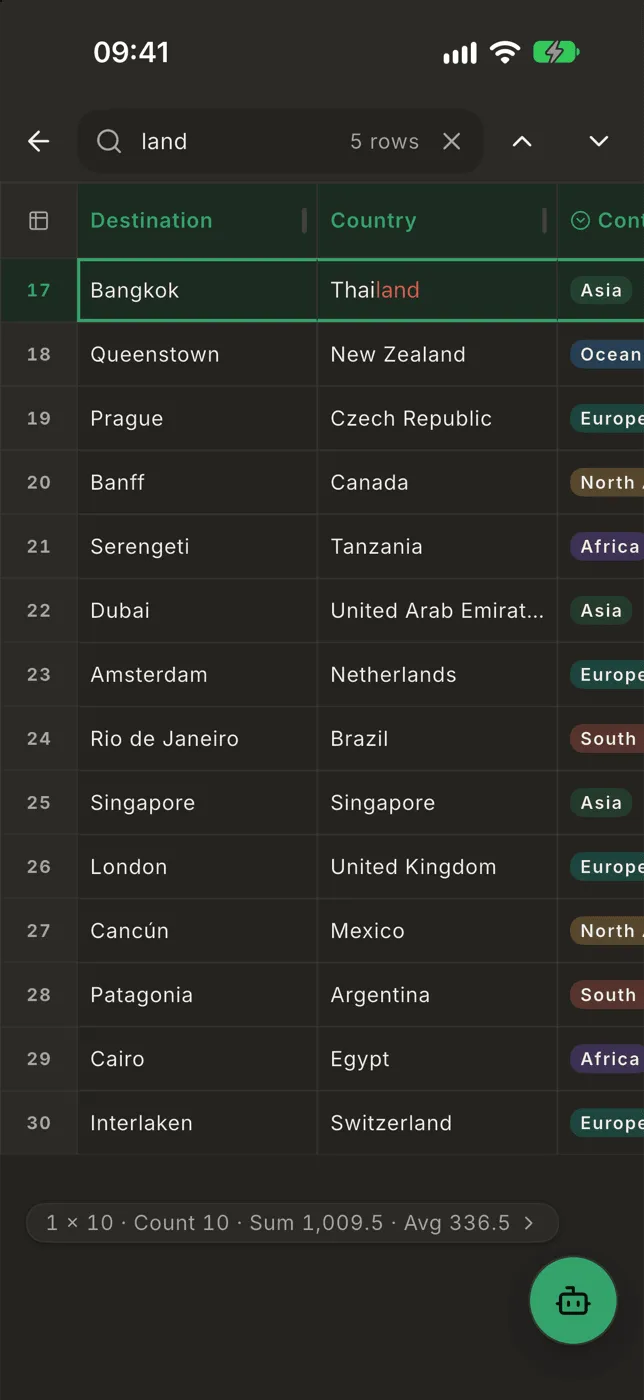
Every match on screen is highlighted. Select another cell and ∨ goes on from there.
While you search, the buttons at the bottom of the screen and the assistant button step aside. The line at the bottom shows the column and value of the cell you landed on; tap it to open the whole row.
The search looks through the rows and columns you can currently see, so an active filter narrows it and hidden columns are skipped. If you edit, sort or move columns while searching, the count updates.
- ✕ in the field clears what you typed.
- ←, or the back gesture, closes the search. The cell you landed on stays selected.
Open the search again and your last search is still there, ready to run again or type over.