Column types
A column can be told what its cells are, and then it works like it: a checkbox column shows boxes you tick, a number column sorts 9 before 10, a date column opens a calendar.
The types
Section titled “The types”| Type | You see | You edit with |
|---|---|---|
| Text | The text. Web addresses are tappable. | The keyboard |
| Number | Right aligned; optionally shown as 1,234.50, $1,234.50 or 25% |
A number keyboard |
| Checkbox | A box | One tap |
| Select | Coloured chips | A list: pick, search or add a choice |
| Date | The date as the file writes it | A calendar |
| Link | Underlined, with an open button (web, e-mail, phone) | The keyboard |
| Image | A thumbnail of a web image | The keyboard (paste the address) |
Look at images
Section titled “Look at images”Tap an image’s thumbnail to see it full screen. Pinch or double-tap to zoom. Swipe sideways, or tap ‹ ›, to go through the other images of the rows on screen — along the row, then down — with the filter and sort you have on. Tap the image to hide the bars, and pull it down to close. When you close it, the grid lands on the last image you looked at.
Set a type
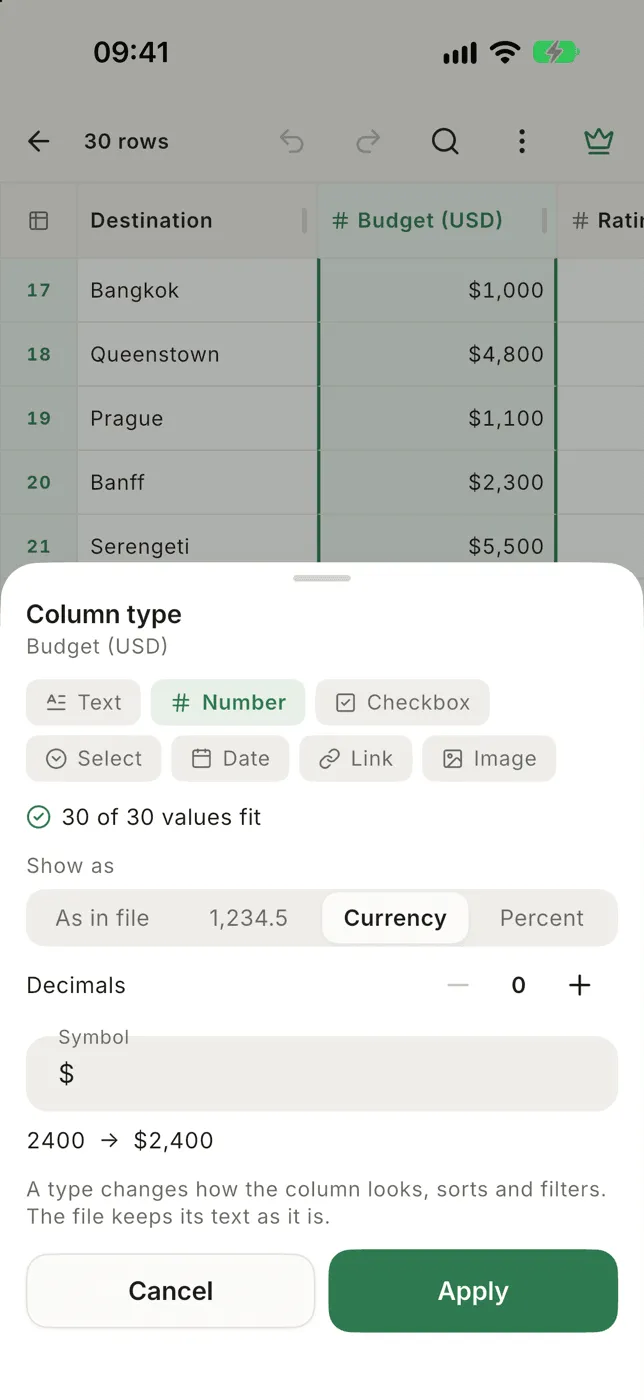
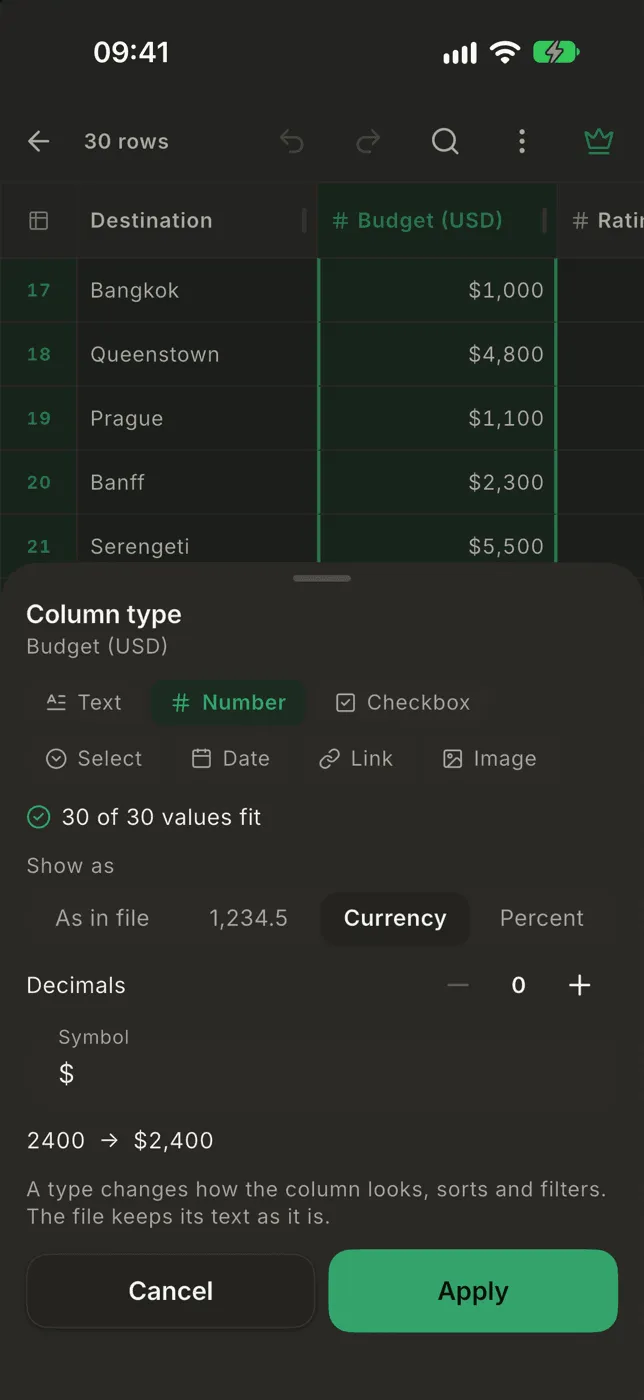
Section titled “Set a type”Tap a column’s name, then Layout → Type, or + → Column type…. Pick a type and the sheet tells you how many values fit, for example 312 of 320 values fit, and shows a few that don’t. Nothing changes until you tap Apply.
With several columns selected, one type is applied to all of them.
You can also set types in Manage columns.
Options
Section titled “Options”- Number: Show as as in the file,
1,234.5, currency or percent, and how many decimals. Only the screen and PDFs change. When the column holds ranges, Sort ranges by picks which number a range like12.7 – 14.8sorts by: Low, Middle or High (see Ranges). - Checkbox: the words for ticked and unticked. Smart CSV reads them from
the column (
TRUE/FALSE,yes/no,1/0,x…) and writes the same words back. - Select: the choices. Tap one to change its colour, hold it to remove
it. Allow several choices is for cells like
red; green. - Date: how the file writes its dates, such as
dd/MM/yyyy. If day and month were guessed the wrong way round, fix it here. Show day of the week puts the day in front of each date, Mon, 27/10/2026, in your language, on screen, in the row form and in PDFs. The file keeps just the date.
Change format… rewrites every date in the column into another format,
for example 03/09/2026 into 2026-09-03. It says how many dates will
change first, and it can be undone.
Ranges
Section titled “Ranges”A number column also takes ranges: two numbers with -, –, —, ~, ÷,
.. or to between them, such as 12.7 – 14.8, 5~10 or -5 - -3. A
range sorts by its low number unless you choose Middle or High in the
column’s options; two ranges with the same low number then go by their high
one. Filters such as greater than 13 compare the same number. A range
written with a unit after it (12–14 g) is not read as one.
Values that don’t fit
Section titled “Values that don’t fit”A value that isn’t what its column says, like n/a in a number column, shows
as it is with a small amber mark in the corner.
Types set for you
Section titled “Types set for you”When a file opens, Smart CSV sets the types it can be sure of (numbers,
checkboxes, dates and links) when every value fits. A column of ranges counts
as numbers when at least one value is a plain number or has decimals, so
555-1234 phone numbers stay text. Open another file with
the same columns and it starts with the types you chose before. A file
without a header line doesn’t: A, B, C say nothing about what’s in them.
Sorting and filtering by type
Section titled “Sorting and filtering by type”- Number and date columns sort by value. Checkboxes sort ticked first.
- The filter offers greater than, less than and between on number and date columns, is checked on checkboxes, is in on selects.
- Your own SQL compares numbers by value too:
WHERE Amount > 100works on1,250.00.
All column types are free.