
Columns
Select a column
Section titled “Select a column”Tap a column name. Tap more names, or drag one of the round handles on the column’s left and right edges, to select several.
Add a column at the end
Section titled “Add a column at the end”After the last column there’s a narrow + in the header row. Tap it and an empty column is added at the end, already selected, with a name you can change by tapping it. Your filter and sort stay as they were. Like the + row, it isn’t shown in full screen or while a SQL filter is on.
Insert and delete
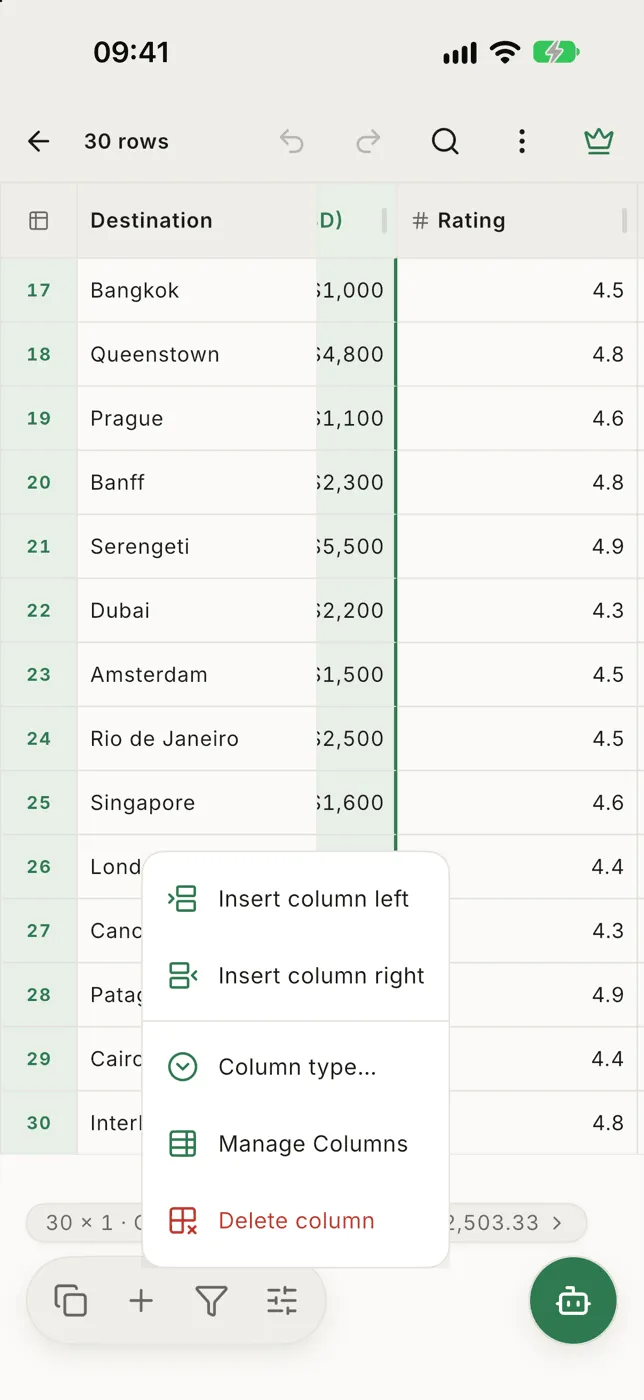
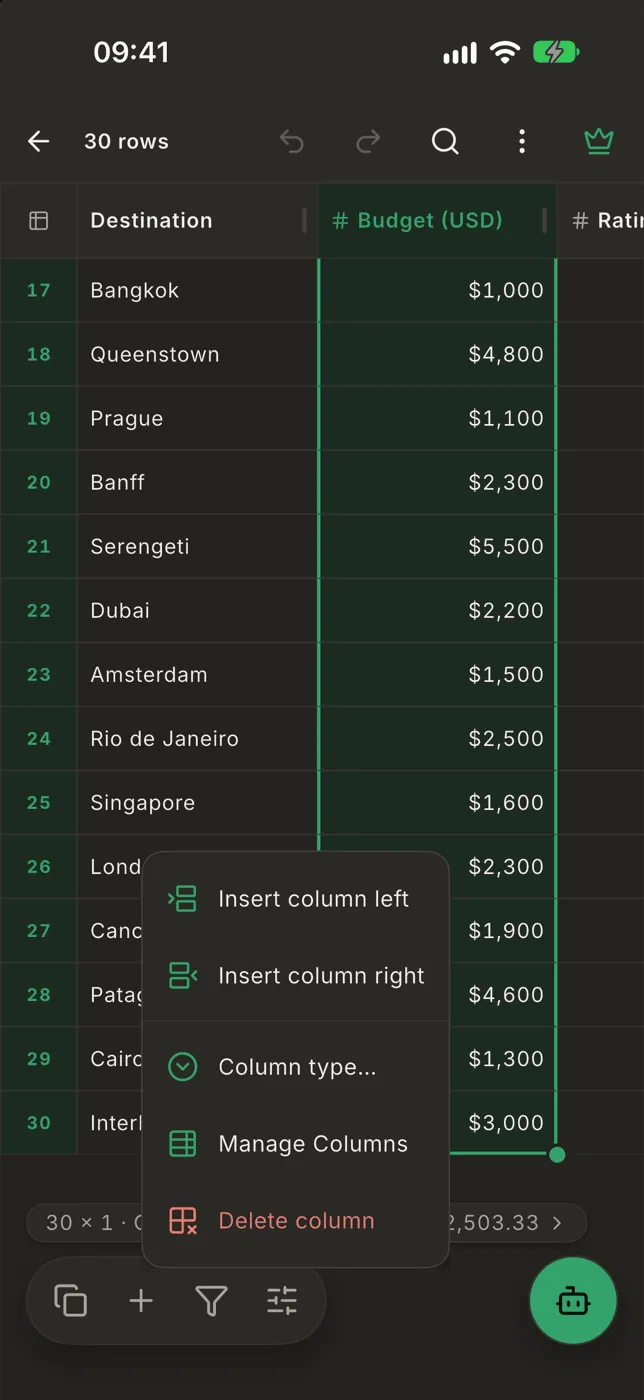
Section titled “Insert and delete”With a column selected, open the Edit menu (+ in the bottom bar):
- Insert column left / Insert column right
- Delete column: the message that follows offers Undo, which brings it back with its values.
Rename
Section titled “Rename”- Tap a selected column’s name again to rename it.
- Or open Layout with the column selected and tap its name.
Manage columns
Section titled “Manage columns”+ → Manage columns shows every column in one list, for several changes at once:
- Drag the handle to reorder.
- Tap the type chip to change the column type. It shows how much of the column fits each type, for example Number 98%.
- Tap the name to rename. A renamed column shows its old name crossed out underneath; tap it, or ↺, to go back.
- The eye hides or shows the column.
- Delete removes it.
- + at the top adds a column at the end. The list scrolls to it with its name selected, so you can type the new name straight away.
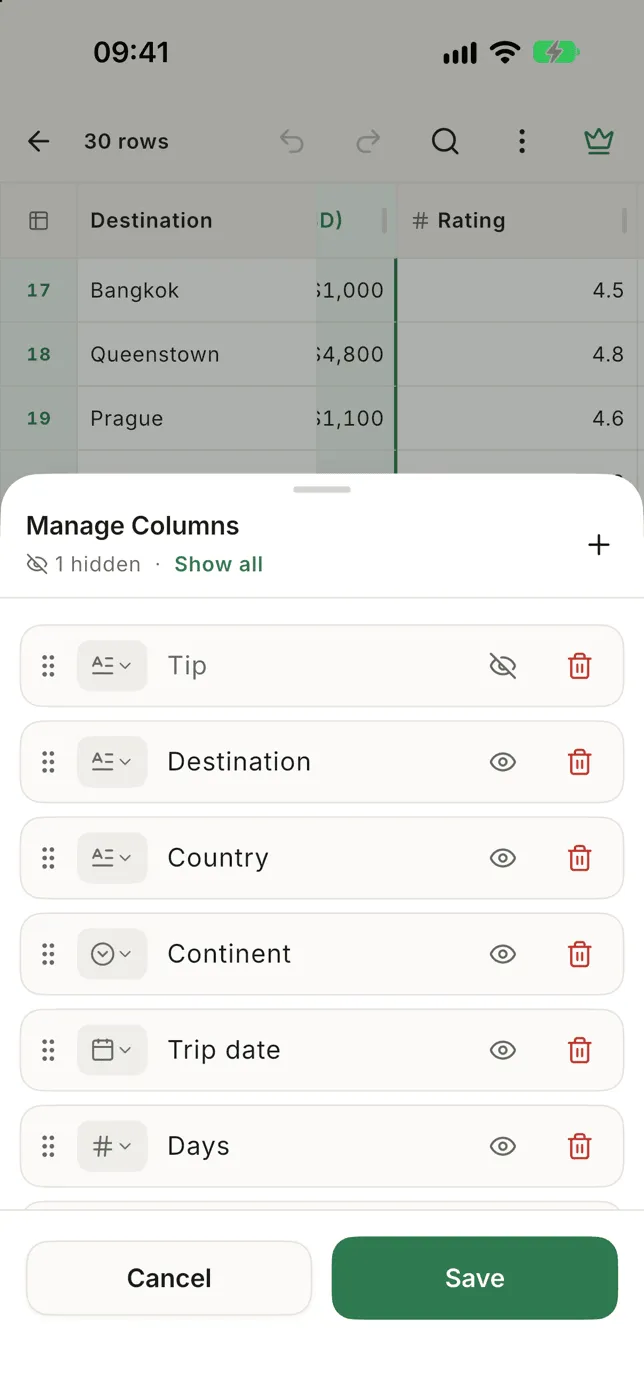
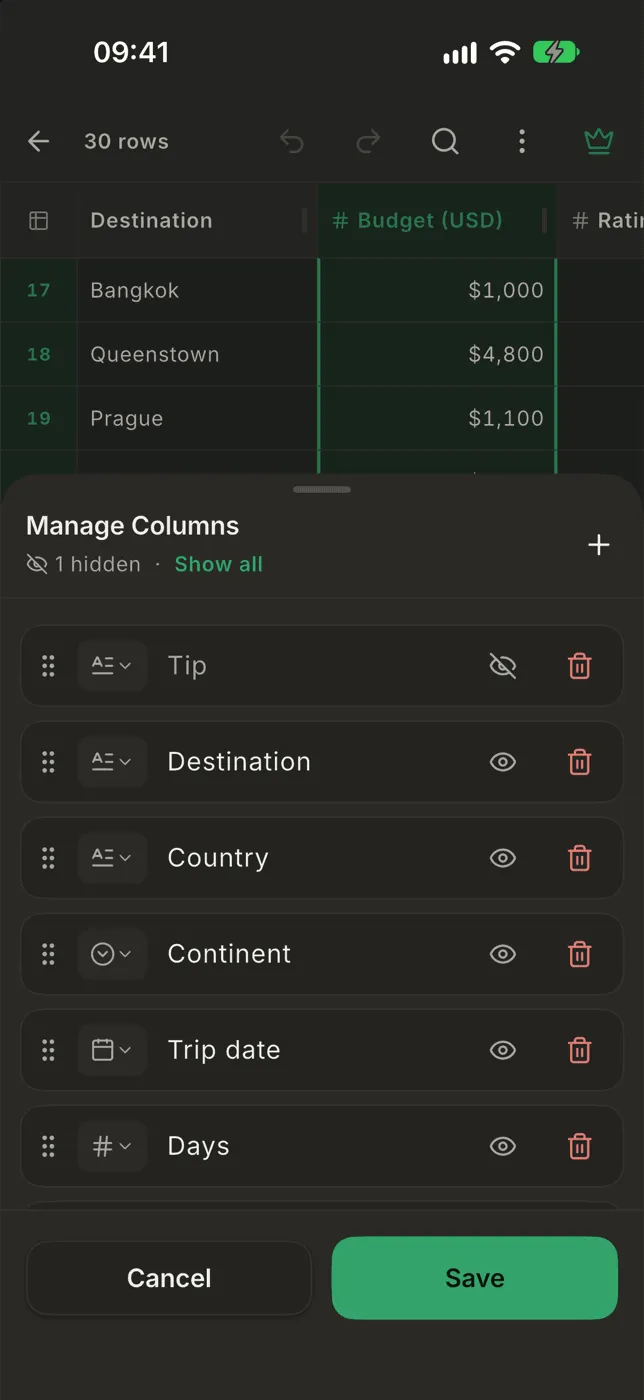
Tap Save to apply everything. One Undo takes the whole save back.
Width, alignment and freezing
Section titled “Width, alignment and freezing”Those live in the Layout panel.